
Compilation Builder
Assemble a custom compilation video and funscript by describing what you want with performers, slots, and filters.
Overview
The Compilation Builder lets you assemble a custom compilation video and its matching funscript without editing clips by hand. Instead of cutting footage together yourself, you describe what you want. You lay out a sequence of slots on a timeline, give each slot a set of filters such as a performer, a stroke type, or a position, and submit the result. The content library is matched against your filters and a finished video and funscript are rendered for you.
Open the workspace with the Compile button in the left toolbar. The builder opens in place of the device emulator and fills the main work area.
The whole arrangement you build is called a blueprint. A blueprint is the ordered list of slots plus a few compilation-wide settings. When you submit it, the blueprint is what gets rendered into a finished compilation.
How It Works
Building a compilation follows a simple loop:
- Pick performers from the gallery at the top, or add empty slots directly on the timeline.
- Refine each slot in the Inspector on the right. Set its duration and any filters that describe the content you want.
- Watch the live preview. As you edit a slot, the builder shows roughly how many matching strokes exist so you know whether your filters are too tight or too loose.
- Submit the compilation. It is queued and rendered in the background. You can keep working while it runs.
- Play the result from the History tab once it finishes, or load its blueprint back into the builder to make a variation.
The Performer Gallery
The gallery is the row of portrait cards across the top of the workspace. Each card is a performer from the library. Use the search box above the row to filter the list by name.
How a click behaves depends on whether a slot is selected:
- No slot selected - clicking a performer adds a new slot at the end with that performer already applied.
- A slot is selected - clicking a performer adds or removes them from that slot's filter. This is how you put several performers into a single slot: select the slot first, then click each performer.
A performer card shows a small badge with the slot number when that performer is used in a slot, so you can see at a glance where each performer appears.
Slots and the Timeline
A slot is one segment of the compilation. Each slot has a duration and an optional set of filters. Slots play in the order they appear on the timeline, left to right. The timeline shows a time ruler so you can see how long each slot is and how long the whole compilation runs.
You manage slots directly on the timeline:
- Select - click a slot to open it in the Inspector.
- Add - use the add-slot control. A new slot is inserted after the selected slot, or at the end if nothing is selected.
- Resize - drag the right edge of a slot to change its duration. The duration snaps in small steps as you drag.
- Reorder - drag the body of a slot left or right to move it to a new position in the sequence.
- Duplicate and Delete - available from the Inspector header for the selected slot.
Zoom controls let you fit the whole compilation in view or zoom in for fine adjustments when the timeline is busy.
Slot Filters
When you select a slot, the Inspector on the right opens its Slot tab. This is where you shape what content the slot pulls from. Every filter is optional. A filter you leave empty means any, so a slot with no filters at all pulls from the full library.
Timing
- Duration - how much time this slot occupies on the timeline. Set it with the number field or the slider.
- Continuous strokes - run several adjacent strokes from the same source in a row. A value of 1 means a single stroke; higher values keep more of the original motion together.
Motion Filters
Motion filters narrow a slot by the shape of the strokes themselves, using the same 0 to 100 position scale as the rest of the editor, where 0 is the lowest point of a stroke and 100 is the highest.
Stroke type
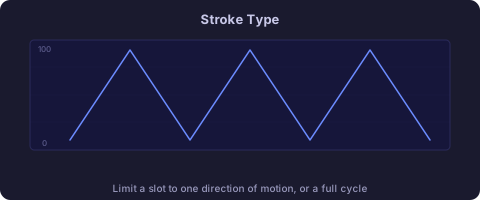
Each stroke moves the position in one direction. The stroke type filter restricts a slot to one direction of motion, or to a full cycle:
- In - the position rises toward 100, the high end of the scale.
- Out - the position falls toward 0, the low end of the scale.
- Cycle - a complete stroke, one full rise and fall together.
- Any - no restriction. Strokes of any direction can match.
Range and Speed
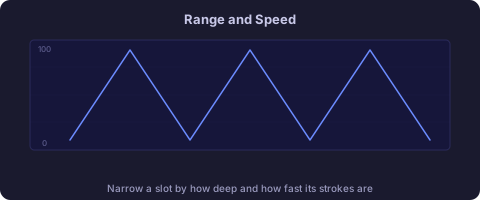
- Range - keep the slot to strokes that stay within a band on the 0 to 100 position scale. Set a minimum, a maximum, or both. This is how you ask for, say, shallow strokes only or deep strokes only.
- Speed - keep the slot to strokes within a pace band, again with a minimum, a maximum, or both. Lower values are slower, gentler strokes; higher values are faster, more intense ones.
Scene Filters
Scene filters narrow a slot by what is happening on screen rather than by the motion. Each one matches against the way the library tags its content, so the exact choices available come from the library and can grow over time. Use the chip pickers and dropdowns to select values; leave any of them empty to place no restriction.
- Positions - the physical position or arrangement on screen. Pick one or more.
- Acts - the kind of act taking place. Pick one or more.
- Modifiers - extra descriptive tags that refine a scene beyond its position and act. Pick one or more.
- Tempo - the overall pace or energy of the scene, as the library classifies it. Pick one or more.
- POV - the point of view of the shot. Choose a single value, or leave as Any.
- Framing - how the shot is framed, such as how close or wide it is. Choose a single value, or leave as Any.
Two switches change how strictly scene filters are applied:
- Only high-confidence scenes - when on, the slot uses only scenes the library is most confident it has tagged correctly. A slider sets how strict that confidence threshold is. Turning it on trades quantity for accuracy.
- Allow mixed-label scenes - on by default. A scene can carry several labels at once; when this is on, such a scene can still match your filter. Turn it off to require scenes that match your filter more cleanly, which is stricter but returns fewer results.
Performers and Videos
- Performers in slot - lists the performers applied to this slot. Add them from the gallery; remove them with the close button on each chip. With no performers, the slot pulls from the full library.
- Videos to compile from - optionally constrain the slot to specific videos from the library instead of any matching video. The list is filtered by the slot's performers.
Compilation Settings
A few settings apply to the whole compilation rather than to one slot:
- Name - a display name for the compilation. It is saved with the result and shown in your History.
- Exclude promo, intro, and outro - skips promotional, intro, outro, dialogue, and other non-content segments across every slot.
Cost and Coins
Your plan includes a number of free compilations each month. When you go beyond that free allowance, additional compilations are paid for with coins rather than being blocked.
- Before you submit, the Compile button shows the cost of the current compilation, so you always see the price up front.
- A coin balance is shown near the Compile button, with a link to top up when you need more.
- If your balance is too low for a paid compilation, the submit is not charged and a message explains what happened. Top up and try again.
History and Your Compilations
The History tab in the Inspector lists your past compilations and shows the status of anything currently rendering. A compilation moves through a few states:
- Rendering - queued or being built. You can cancel it while it runs.
- Completed - finished and ready to play or download.
- Failed - something went wrong; the entry stays in your history so you can see what happened.
From a completed compilation you can:
- Play - load the rendered video and funscript into the player.
- Load - bring the compilation's blueprint back into the builder so you can edit and re-render it.
- Duplicate - load the blueprint as a new, separately-named copy to build a variation without changing the original.
- Delete - remove the compilation from your history.
Use the search box to find a past compilation by name, and load more pages of history as you scroll back.