
Video Player
Load and control video playback in ScriptCompiler.
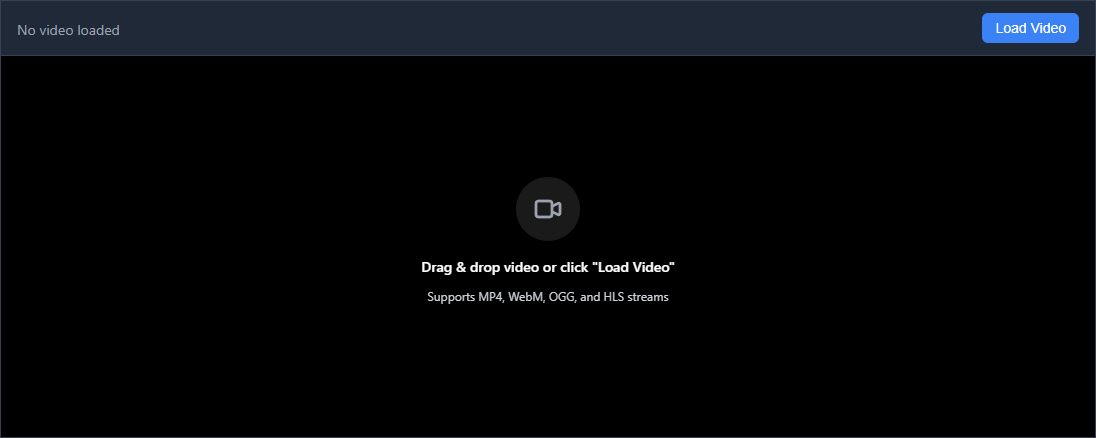
The video player displays your source video and stays synchronized with the timeline, controls bar, and any connected devices.
Loading Videos
Load a video using any of these methods:
- File manager - Click the folder icon in the header to open the file manager, then use the Local File, Local Videos, or Stash Library tab
- Drag and drop - Drag a video file directly onto the editor
Supported Formats
The video player supports formats your browser can decode natively:
| Format | Extension | Notes |
|---|---|---|
| MP4 | .mp4 | Best compatibility, recommended |
| WebM | .webm | Good compression, web-optimized |
| OGG | .ogg, .ogv | Open format |
Videos loaded from the Local Videos library or from Stash are streamed over HTTP from the Bridge or Stash server. This means you can work with large video files without copying them anywhere.
Playback Controls
The controls bar below the timeline contains the main playback controls:
- Play / Pause - Toggle playback
- Stop - Stop playback and return to the start
- Seek bar - Click or drag to jump to any position
- Volume - Adjust audio level or mute
- Time display - Shows current time and total duration
Speed Control
Adjust playback speed to suit the part of the script you are working on:
| Speed | Use case |
|---|---|
| 0.25x | Slow motion for detailed timing |
| 0.5x | Careful editing of fast sections |
| 1x | Normal review |
| 1.5x - 2x | Quick scan of long content |
Speed is adjusted using the dropdown in the controls bar or with the + and - keys.
Synchronization
The video player stays in sync with the rest of the editor at all times:
- Timeline - The red cursor follows the video position
- Controls bar - Seek bar and time display stay in sync
- Device Emulator - Shows script playback in real time
- Connected devices - Receives commands during playback
Clicking anywhere on the Script Overview jumps the video to that position.
Keyboard Shortcuts
| Shortcut | Action |
|---|---|
| Space or K | Play / Pause |
| Home | Jump to start |
| End | Jump to end |
| Left | Seek backward |
| Right | Seek forward |
| + | Increase playback speed |
| - | Decrease playback speed |
Troubleshooting
Video will not load
- Check that the file format is supported
- Try converting to MP4 with H.264 codec using HandBrake or FFmpeg
- Make sure the file is not corrupted by playing it in another player first
Playback is choppy
- Try a lower resolution version of the video
- Close other browser tabs to free up memory
- For MKV or AVI files loaded via the Bridge, try converting to MP4 for smoother scrubbing
No audio
- Check that the volume control in the controls bar is not muted
- Verify your system audio settings
- Some browsers require user interaction before audio starts. Click anywhere on the page first.