
Tools Overview
Explore the productivity tools available in ScriptCompiler for transforming, generating, and selecting script points.
Introduction
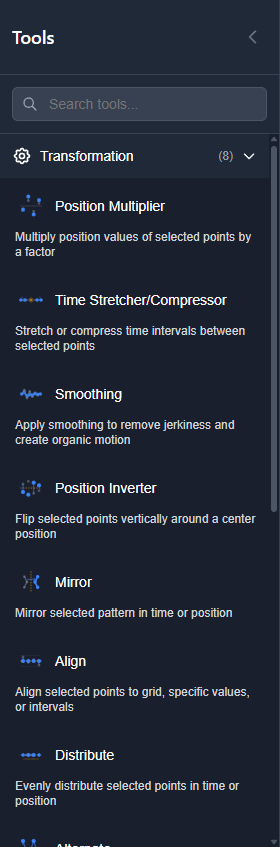
ScriptCompiler includes a full set of productivity tools that help you work faster and create better scripts. These tools operate on selected points and provide previews before applying changes.
Accessing Tools
Access tools from the Tools Panel on the left side of the editor:
- Click the Tools Panel button or hover over the left edge
- Browse tools by category or search by name
- Click a tool to open its configuration panel
On desktop, the panel displays as a sidebar. On mobile, it appears as a floating action button that opens a bottom sheet.
Tool Categories
Transformation Tools
Transform existing points by modifying their position or timing:
- Position Multiplier - Scale position values up or down
- Time Stretcher - Expand or compress time between points
- Smoothing - Reduce point count while maintaining curve shape
- Position Inverter - Flip positions (100 becomes 0, 0 becomes 100)
- Mirror - Mirror points around a center axis
- Alternate - Convert flat lines into alternating high/low patterns
Generation Tools
Generate new points based on patterns or algorithms:
- Fap Generator - Generate rhythmic stroking patterns with various wave types
- Pattern Repeater - Repeat a selected pattern multiple times
- Wave Generator - Create sine, square, or triangle wave patterns
- Ramp Generator - Create transitions between positions with various easing options
- Fill Between - Generate points between two selected points
Selection Tools
Select points based on criteria:
- Select by Range - Select points within time or position ranges
Alignment Tools
Align and distribute points:
- Align - Align points to top, middle, or bottom
- Distribute - Space points evenly in time
Using Tools
Most tools follow this workflow:
- Select the points you want to modify
- Open the tool from the Tools Panel
- Adjust the parameters as needed
- Preview the result (most tools show a live preview)
- Click Apply to commit the changes
Premium Tools
Some tools require a premium subscription. Locked tools display a lock icon and show upgrade options when clicked.
Free users have access to essential tools. Premium subscribers get access to all tools plus advanced features.