
VR Video Mode (Beta)
Play 360-degree VR videos with interactive camera controls for scripting VR content.
Overview
VR Video Mode replaces the standard video player with a 360-degree viewer built on Three.js. It renders equirectangular VR video onto a sphere and lets you look around freely using mouse, touch, or gyroscope controls.
Toggle VR Mode from the left sidebar. The button is labelled VR Mode (Beta).
Loading a VR Video
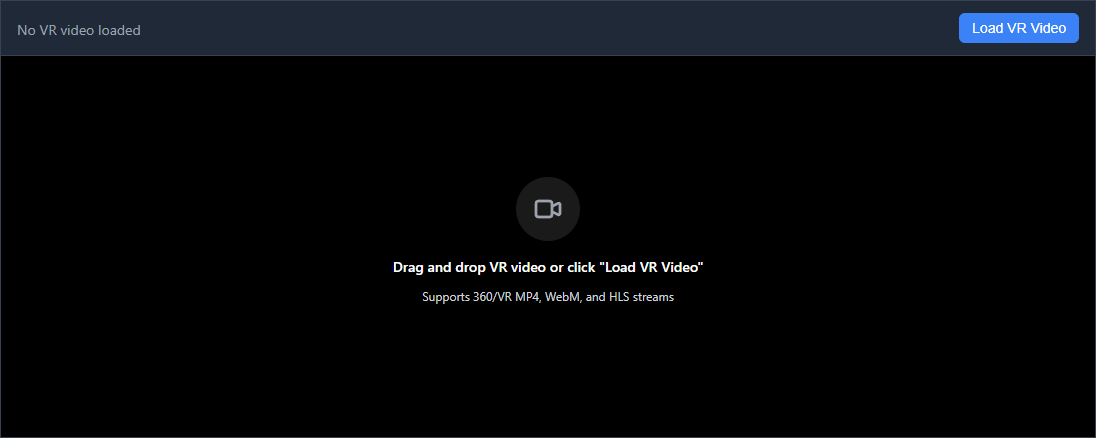
When VR Mode is active, the VR player appears in place of the standard video player. Load a video in one of three ways:
- Click Load VR Video to open a file picker
- Drag and drop a video file onto the player area
- External URL - the host app can pass a video URL via props
The player supports the same formats as the standard player: MP4, WebM, OGG, and HLS streams. Once loaded, the video is projected onto the inside of a sphere and you can look around from the center.
Use the Change Video button to load a different file, or Unload to remove the current video.
Camera Controls
Mouse / Touch
- Click and drag to look around (pan and tilt)
- Dragging continues to work even if the cursor leaves the player area
Scroll Wheel
- Scroll up to zoom in (decrease field of view)
- Scroll down to zoom out (increase field of view)
- Field of view ranges from 30 to 120 degrees
Reset View
Click the Reset View button to return the camera to its default orientation and field of view.
Projection Modes
Click the projection button in the header to cycle through available modes:
- Equirectangular - Standard 360-degree projection used by most VR videos
- Equirectangular (Top-Bottom) - Stereoscopic VR with the left eye on top and right eye on the bottom half
Gyroscope Control
On devices with a gyroscope (phones, tablets), click the Gyro button to enable device orientation tracking. Tilt and rotate the device to look around the VR scene naturally.
On iOS, the browser will ask for permission to access motion sensors the first time you enable the gyroscope. Gyroscope input is paused while you drag with touch, so you can combine both methods.
Scripting VR Content
VR Mode works with the rest of the editor. The timeline, controls, drawing panel, and all tools function the same way as with a standard video.
Using Script Sniper with VR (Beta)
Script Sniper can be used in VR Mode. This combination is also in beta. When tracking is active, the VR player switches to raw video mode which shows the flat equirectangular video so the tracking overlay can be displayed on top. The tracking bounding box and trail are drawn on the 2D video surface.
Tips
Video Format
VR videos are typically equirectangular MP4 files. The player expects the video to be a standard 2:1 aspect ratio equirectangular projection. Most VR video sources use this format by default.
Performance
The 3D rendering requires a GPU-capable browser. If you experience low frame rates, try a lower resolution video or close other GPU-intensive browser tabs.
Field of View
A narrower field of view (zoomed in) is useful for focusing on specific areas of the scene. A wider field of view shows more of the sphere at once, which helps with orientation.