
Presets
Save, reuse, and share funscript patterns across your projects.
Overview
Presets let you save a selection of action points as a reusable pattern. Once saved, you can apply the same pattern anywhere on the timeline with a single click. Presets can be kept private, shared publicly with the community, or used from a built-in collection of system presets.
Saving a Preset
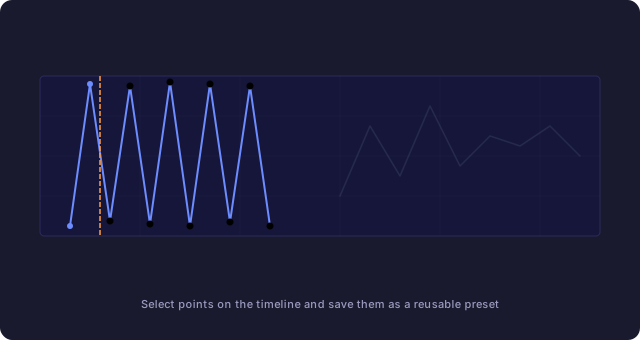
- Select the points you want to save on the timeline.
- Right-click and choose Save as Preset from the context menu.
- Enter a name for your preset. Optionally add a description, usage notes, and tags.
- Click Save.
The selected points are normalized (time starts at zero) so the preset can be placed at any position on the timeline.
Applying a Preset
There are two ways to apply a preset:
- From the timeline - Right-click at the desired position and select Add Preset. A picker appears with your presets, system presets, and public presets. Click a preset to preview it on the timeline.
- From the presets panel - Open with Alt + A or from the My Presets dialog. Click Use on any preset to place it at the current playback position.
After selecting a preset, a preview overlay appears on the timeline. You can adjust the scaling and position before applying it. Click Apply on the toolbar to commit the points, or Cancel to discard.
System Presets
System presets are built-in patterns available to all users. They cover common movements and can be applied immediately without creating your own.
Browse system presets from the System tab in the presets panel. Each preset includes a mini chart preview, description, and usage notes.
Public Presets
Community members can share their presets publicly. Browse the Public tab to discover patterns created by other scripters. Use the search bar and tag filters to find specific patterns.
To share one of your presets, open the presets panel, find your preset in the My Presets tab, and click Public to toggle its visibility.
Managing Presets
From the My Presets tab you can:
- Edit - Update the name, description, tags, and usage notes.
- Public / Private - Toggle whether the preset is visible to other users.
- Delete - Permanently remove the preset.
- Overwrite - When saving a new preset, choose "Overwrite existing" to update the actions of an existing preset instead of creating a new one.
Preview and Scaling
When a preset is placed on the timeline, a preview toolbar appears with controls to adjust the pattern before applying:
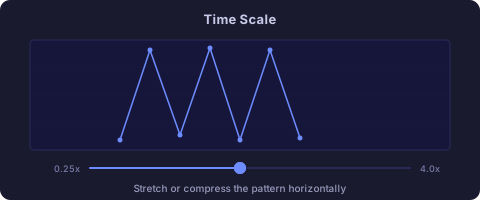
Time Scale
Amplitude Scale

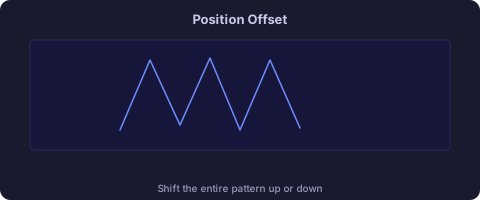
Position Offset
Duration / Tiling
| Control | Range | Description |
|---|---|---|
| Time Scale | 0.25x - 4.0x | Stretch or compress the pattern horizontally. |
| Amplitude Scale | 0.1x - 2.0x | Scale the vertical range of the pattern. |
| Position Offset | -50 to +50 | Shift the entire pattern up or down. |
| Duration | Single copy or tiled | Tile the pattern to fill a longer duration. |
You can also drag the preview overlay on the timeline to reposition it before applying.
Keyboard Shortcuts
| Shortcut | Action |
|---|---|
| Alt + A | Open / close the preset picker |
| Esc | Close the preset picker or cancel preview |