
Interface Overview
Learn about all the components of the ScriptCompiler editor interface.
ScriptCompiler's interface is designed for efficient funscript editing. This guide explains each component and how they work together.
Layout
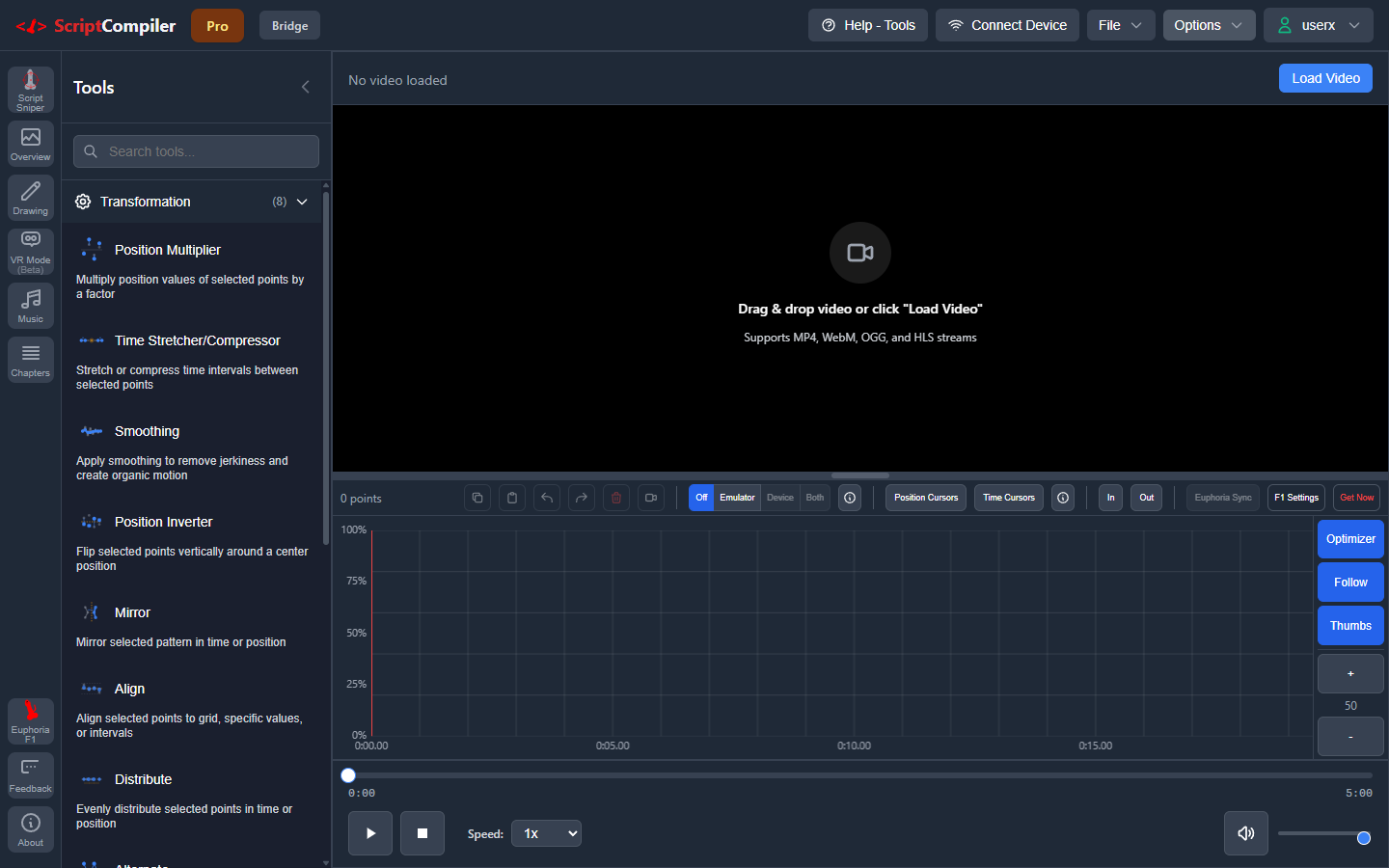
The editor uses a flexible layout with several key areas:
- Header - Navigation, file operations, and settings
- Tools Panel - Left sidebar with productivity tools
- Main Content - Video player, drawing panel, and device emulator
- Timeline - Point editing canvas
- Script Overview - Visualization and navigation bar
- Controls Bar - Playback controls and selection tools
Header

The header contains navigation and quick access to common functions:
- Logo - ScriptCompiler branding
- File Menu - Open, save, and manage scripts
- Options Menu - Keyboard shortcuts and settings
- Connect Device - Open device connection panel
- Account - Login/logout and profile settings
The current filename and plan badge are displayed in the header. An asterisk (*) next to the filename indicates unsaved changes.
Tools Panel
The left sidebar provides access to productivity tools and advanced features:
- Script Sniper - AI-powered motion tracking
- Overview Toggle - Show/hide the Script Overview
- Drawing Panel - Toggle the drawing interface
- VR Mode (Beta) - Toggle 360-degree VR video playback
- Music Scripter - Audio-based script generation
- Chapters - Manage chapter markers
- Euphoria F1 - Pressure sensor device integration
- Feedback - Submit feedback and bug reports
- About - Version and app information
On desktop, the panel displays as a sidebar. On mobile devices, it appears above the timeline.
Main Content Area
The main content area contains the video player, drawing panel, and device emulator arranged horizontally.
Video Player
The video player displays your loaded video with playback controls:
- Load videos via drag-drop or file picker
- Supports MP4, WebM, OGG, and HLS streams
- Speed control from 0.25x to 2x
- Volume control with mute toggle
- Full sync with timeline and controls
See Video Player for detailed usage.
Drawing Panel
The drawing panel provides a freehand drawing interface for creating smooth patterns:
- Click and drag to draw continuous curves
- Vertical position (0-100) shown with grid
- Automatic point creation based on movement
- Crosshair indicator for current position
See Drawing Mode for detailed usage.
Device Emulator
The device emulator shows a physics-based preview of your script:
- Simulates real device behavior
- Shows velocity and acceleration limits
- Supports different device profiles
- Real-time sync with playback
See Device Emulator for detailed usage.
Timeline
The timeline is the main editing canvas where you create and modify action points:
- Canvas - Click to add points, drag to move them
- Grid - Visual reference for time and position
- Playback cursor - Red vertical line showing current position
- Selection - Yellow highlight on selected points
- Zoom controls - Adjust view scale
See Timeline for detailed usage.
Script Overview
The Script Overview displays a condensed view of your entire script with speed visualization. It supports two view modes:
- Line mode - Position graph with speed-colored line segments
- Heatmap mode - Speed density bars for quick scanning
- Color coding - Green (slow) through amber and orange to red (very fast)
- Click to navigate - Jump quickly to any position
- Zoom and pan - Zoom from 1x to 10x with scroll, drag, or buttons
- Statistics - Duration, point count, average and max speed
- Timeline sync - Automatically follows the timeline's visible range
See Script Overview for detailed usage.
Controls Bar
The controls bar at the bottom provides playback and editing controls:
- Play/Pause/Stop - Control video playback
- Seek bar - Visual progress with click-to-seek
- Speed control - Adjust playback speed
- Time display - Current time and total duration
- Selection tools - Delete, undo, redo buttons
See Controls for detailed usage.
Resizable Panels
All major sections can be resized by dragging the dividers between them:
- Drag horizontal dividers to adjust vertical panel sizes
- Drag vertical dividers to adjust horizontal panel sizes
- Panel sizes are saved and restored between sessions
- Use Options, then Reset Layout to restore defaults