
Chapters
Organize your script with color-coded chapter markers for quick navigation.
Overview
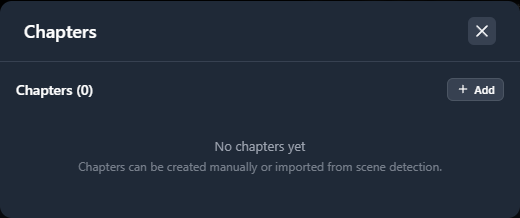
The Chapters panel lets you divide your video into named, color-coded sections. Chapters appear as markers on the timeline and in a list panel, making it easy to navigate long videos and keep your work organized.
Open the Chapters panel from the left sidebar.
On supported plans, chapters can also be named automatically by having the AI look at a frame from each chapter and detect what is happening in the scene. See Auto-Naming and Classification below.
Adding Chapters
There are two ways to create chapters:
- Add manually - Click the Add button in the Chapters panel header. A new chapter is created at the current playback position.
- Scene Detection - If you have the ScriptCompiler Bridge installed, use Scene Detection to automatically create chapters at detected scene cuts. See Scene Detection Integration below.
Each new chapter is assigned a default name and color. You can customize both immediately after creation.
Editing Chapters
Every part of a chapter can be edited inline:
- Name - Click the chapter name to edit it. Press Enter to save or Escape to cancel.
- Start time - Click the start time to edit it. Enter the time in MM:SS or HH:MM:SS format.
- End time - Click the end time to edit it in the same format.
The currently active chapter (based on the playback position) is highlighted in the list.
Color Coding
Each chapter has a color indicator shown as a small dot next to its name. Click the dot to open the color picker, which offers a palette of 12 colors. The selected color is used for the chapter marker on the timeline.
Color coding helps you visually distinguish different types of scenes at a glance when looking at the timeline.
Scene Detection Integration
Scene Detection uses the ScriptCompiler Bridge to automatically find cuts and transitions in your video. Detected scenes can be imported directly as chapters.
- Open the Bridge dialog from the header
- Start scene detection (the progress is shown during analysis)
- Once complete, import the detected scenes as chapters
When your plan includes classification, scene-detected chapters are auto-named on import, so a freshly detected set of chapters arrives already labeled with what each scene contains.
Auto-Naming and Classification
Auto-naming uses AI to look at a single frame from a chapter and detect what is happening in the scene, then names the chapter and tags it with what it found. This is useful for quickly labeling a long video, especially after Scene Detection has created many chapters at once.
Naming a Chapter
There are two ways to classify chapters:
- Auto-name one chapter - click the auto-name button on a chapter row. The chapter's frame is classified and the chapter is renamed to the detected scene.
- Auto-name all - click Auto-name all in the panel header to classify every chapter in turn. A spinner and a live count show progress while the batch runs.
The suggested name comes from the strongest signal the AI found: the main position if there is one, otherwise the main act, otherwise the overall scene type. You can always edit the name afterwards just like any other chapter.
Classification Tags
A classified chapter shows up to three color-coded chips summarizing the scene: the main act, the POV, and the framing. When the AI detected more than fits on the row, a +N badge appears.
Click a chapter to expand it and see the full breakdown, which can include positions, acts, scene type, POV, framing, and modifiers. These are the same scene tags used by the Compilation Builder, so a chapter's classification reads the same way as a compilation slot's scene filters.
Which Frame Is Used
Each classification looks at a single frame from inside the chapter. You choose which one in Settings under Chapter classification frame: the start, middle, or end of the chapter. The start and end options are nudged slightly inward so a classification does not land on a cut or a black transition frame right at the boundary.
Free Classifications and Tokens
Your plan includes a number of free classifications each month. The usage bar at the top of the panel shows how many you have left, and resets at the start of each month.
- While you are under the free allowance, the bar shows how many free classifications remain.
- Once the free allowance is used up, additional classifications are paid for with tokens. The bar shows your token balance with a link to top up, and how many tokens each extra classification costs.
- If you run out of tokens, auto-naming pauses and prompts you to top up before continuing.
Managing Chapters
- Navigate - Click a chapter in the list to seek the video to that chapter's start time.
- Delete - Click the delete button on any chapter to remove it.
- Clear All - Click Clear All and then confirm to remove all chapters at once.