
AI Assistant
Build and edit funscripts from a plain-text description with the ScriptCompiler AI Assistant. The AI generates single-axis and multi-axis motion, adds chapters, and refines existing scripts through chat.
Overview
The AI Assistant is a chat panel built into the ScriptCompiler editor that turns a plain-text description into a finished funscript. Describe the motion you want, such as a blowjob chapter or a slow teasing buildup, and the assistant generates the points directly on your timeline. It works for both simple stroke scripts and full multi-axis motion, and it can extend or refine scripts you already have.
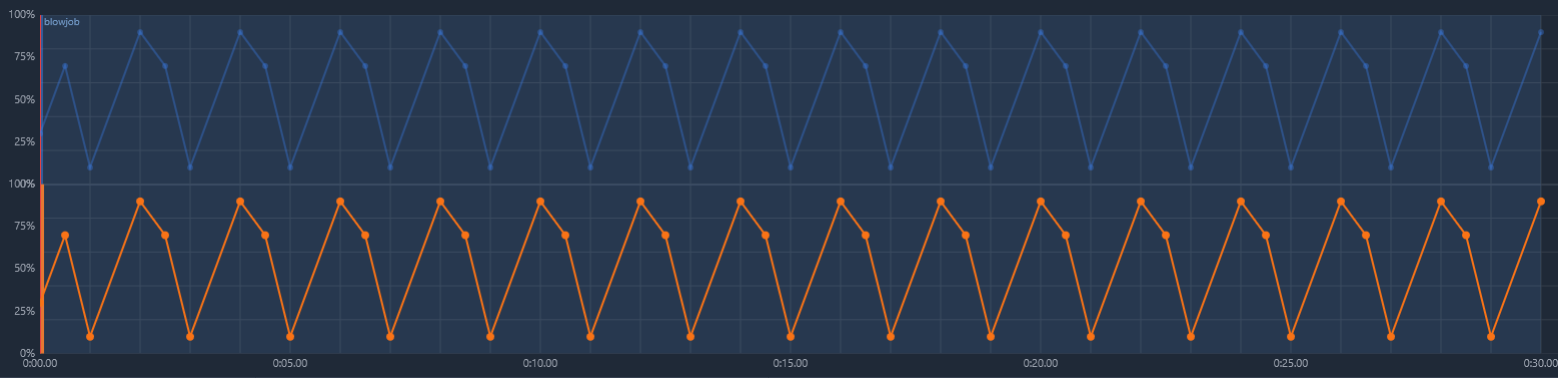
Instead of placing points by hand, you have a conversation. You ask for what you want, the AI builds it, and you keep chatting to adjust the result until it feels right.
What the AI Assistant Does
The assistant can:
- Generate motion from a description - turn a sentence into stroke points or coordinated multi-axis motion
- Add chapters - create a named section (for example a "blowjob" or "riding" chapter) and fill it with motion
- Build single-axis or multi-axis scripts - a fast stroke-only script, or coordinated movement across stroke, surge, sway, twist, roll, pitch, and vibrate
- Edit and extend existing scripts - refine a section, change the rhythm, or continue what you already have
Every change is applied straight to the timeline, so you can play it back, preview it on the Device Emulator, and keep editing by hand or with the tools exactly as with any other script.
Opening the AI Assistant
On desktop, open the assistant in either of two ways:
- Click the AI button on the left toolbar, alongside Drawing and VR Mode
- Open the AI tab in the right-hand sidebar, next to Presets and Chapters
Both open the same panel. The assistant and its session are created the first time you open it, so a fresh page load never starts an AI session until you ask for one.
Generating Your First Script
When the panel is empty it shows a few suggested prompts to get you started. To generate a script:
- Choose Single-axis or Multi-axis mode
- Pick a Quality level (Fast, Balanced, or Best)
- Type a description, or click a suggested prompt
- Press Send
A good prompt names the motion, a duration, and where it goes. For example: "Add a 30 second blowjob chapter and generate the motion script for it." The assistant works through the request, shows each step it takes (such as adding a chapter and coordinating the axes), and finishes with a short summary of what it built.

Single-Axis vs Multi-Axis
The mode toggle at the top of the panel decides how many channels the assistant builds.
- Single-axis builds a stroke-only script. It uses a stroke-only prompt and a reduced toolset, so it is faster and cheaper and produces no unused companion axes. Choose this for one-channel devices like The Handy, the Autoblow, and the Kiiroo KEON.
- Multi-axis builds coordinated motion across all axes for devices like the OSR2 and SR6. Choose this when you want the extra channels of movement.


For more on the axes themselves, see Multi-Axis Scripts.
Quality: Fast, Balanced, and Best
The Quality control trades speed for refinement:
- Fast - one quick pass, best for simple edits
- Balanced - a refined build at a reasonable speed
- Best - more detailed, carefully sectioned motion, but slower

Like the mode, the quality level is set when the session is created and is remembered for next time.
Editing and Refining a Script
The assistant keeps the conversation going, so you can refine a result with follow-up messages instead of starting over. Ask it to make a section faster, extend a chapter, change the rhythm, or add another axis. Each reply is applied on top of the current script, and any single change the AI makes can be undone like a normal edit.
Editing While the AI Works
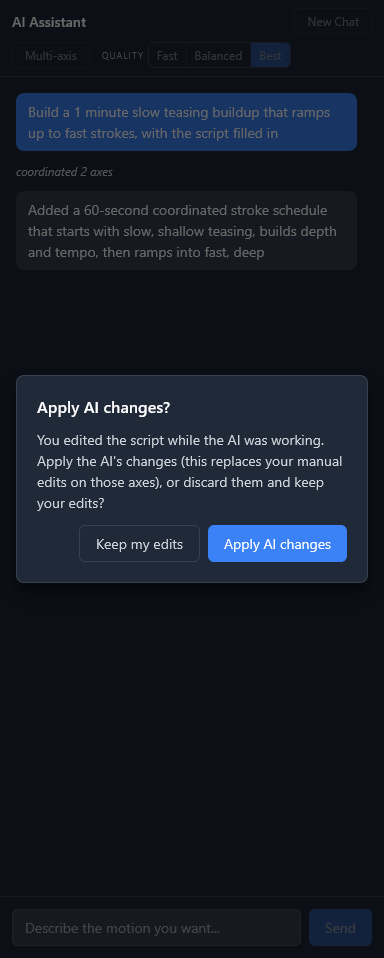
You can keep working while the AI builds. If you edit the timeline during a turn and your edit touches the same axes the AI changed, ScriptCompiler does not silently overwrite your work. At the end of the turn it asks "Apply AI changes?" and lets you choose:
- Keep my edits - discard the AI changes on those axes and keep what you did by hand
- Apply AI changes - replace your manual edits on those axes with the AI result
Starting a New Chat
The New Chat button clears the conversation and starts fresh. Your script is not affected, only the chat history is reset. Use it when you move on to a different idea and do not want the assistant carrying over context from the previous request.
Using the AI Assistant on Mobile
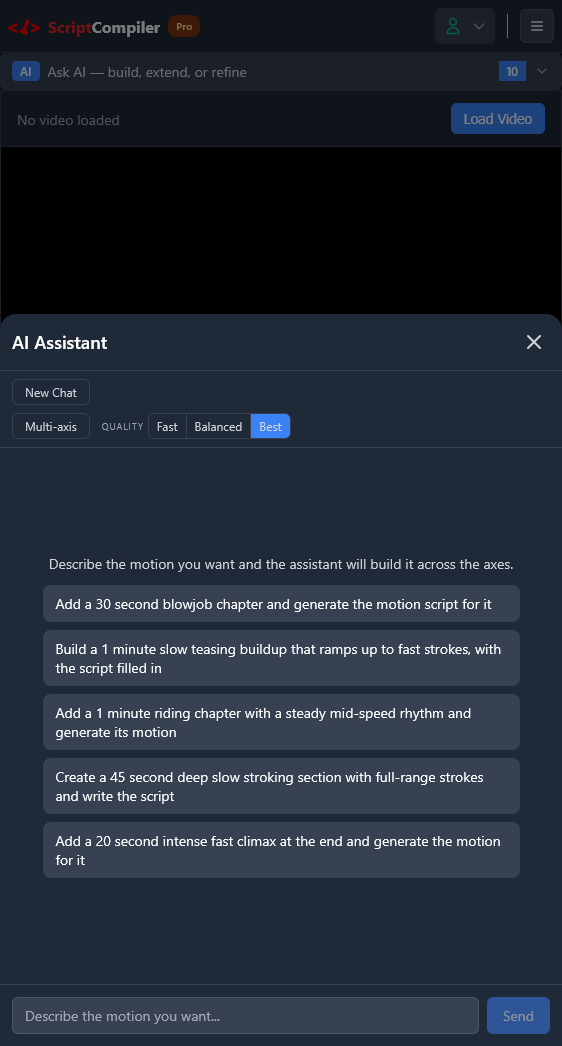
On phones and small screens, the assistant opens as a bottom sheet. Tap the Ask AI dock pinned under the header to open it. It has the same controls as the desktop panel, including the mode toggle, quality levels, suggested prompts, and the message input.
Availability and Limits
The AI Assistant is available to every signed-in user. You must be signed in to use it. When you are signed out, the panel prompts you to sign in.

Usage is metered. Pro members get a set number of free messages each calendar month. Free members use coins, paying per message based on what the request actually costs.
When you run out of free messages or coins, the panel shows a notice with a link to top up, and you can continue once you have added more. The cost is charged only for messages that produce a result.
Frequently Asked Questions
What is the ScriptCompiler AI Assistant?
The AI Assistant is a chat panel built into the ScriptCompiler funscript editor. You describe the motion you want in plain English and it builds the funscript for you, generating stroke and multi-axis motion, adding chapters, and editing scripts you already have.
How do I generate a funscript with AI?
Open the AI Assistant from the AI button on the left toolbar (or the AI tab in the right sidebar), type a description such as "Add a 30 second blowjob chapter and generate the motion script for it", and press Send. The assistant writes the points directly onto your timeline.
Can the AI create multi-axis scripts?
Yes. In Multi-axis mode the assistant builds coordinated motion across stroke, surge, sway, twist, roll, pitch, and vibrate. Switch to Single-axis mode for a faster stroke-only script for devices like The Handy.
Is the AI Assistant free?
The AI Assistant is available to every signed-in user. Pro members get a number of free messages each month; Free members use coins. When you run out of free messages or coins, you can top up to keep going. You need to be signed in to use it.
Can the AI watch or track my video?
No. The AI Assistant cannot see, play, or analyze the video loaded in the editor, and it cannot detect motion or positions from the footage. It builds the funscript from your written description, the script you already have, and your chapter map. To get motion that matches a video, describe what happens (for example "30 seconds of fast deep strokes"), or set up chapters for each section and ask the AI to build per chapter.
Does the AI overwrite my manual edits?
No. If you edit the timeline while the AI is working, ScriptCompiler asks before applying the AI changes so your manual edits are never silently overwritten. You choose to keep your edits or apply the AI result.