
Drawing Mode
Create smooth funscript patterns by drawing directly on the canvas.
Overview
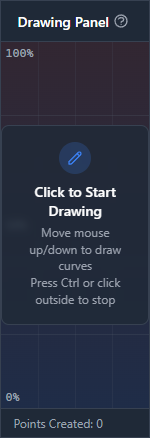
Drawing mode provides a natural way to create funscript patterns by drawing with your mouse. Instead of placing individual points, you draw continuous curves that are automatically converted to action points.
This is especially useful for creating smooth, organic patterns that would be tedious to create point by point.
How It Works
When you click in the drawing panel, it captures your cursor. You then move the mouse up and down to draw:
- The vertical position of your mouse (0 at bottom, 100 at top) maps to position values
- Time advances as the video plays (or at a fixed rate if paused)
- Points are created in real-time based on time and position thresholds
- Points are added to your script as you draw, not after you stop
Drawing Workflow
Basic Drawing
- Click on the drawing panel to capture the cursor
- Optionally start video playback with Space
- Move the mouse up and down to create the pattern
- Press Ctrl to stop drawing and release the cursor
Drawing with Video Playback
For the best results, draw while the video plays:
- Position the video at the start of the section to script
- Click on the drawing panel to capture the cursor
- Press Space to start playback
- Move your mouse up and down to match the action
- Press Ctrl to stop drawing
Point Creation
Points are created based on two thresholds:
- Minimum time (default: 50ms) - At least this much time must pass between points
- Minimum position change (default: 2) - Position must change by at least this amount
Both conditions must be met for a new point to be created. This prevents creating too many points while ensuring smooth curves.
Interface Elements
The drawing panel includes several visual aids:
- Grid - Horizontal lines at 0%, 25%, 50%, 75%, and 100% with labels
- Crosshair - Shows your current mouse position
- Position display - Numeric display of current position
- Preview points - Temporary display of points being created
- Background gradient - Indicates active drawing state
Tips for Drawing
Start Slow
Begin with slower playback speeds. At 0.5x speed, you have more time to react to the video content and create accurate patterns.
Drawing Settings
Drawing thresholds can be configured in Settings under the Drawing tab. You can adjust the minimum time between points (50-1000ms) and the minimum position change (1-50 pixels) to control how many points are generated.
Smooth Movements
Avoid jerky mouse movements. Smooth, flowing motions create better patterns that are easier for devices to reproduce.
Combine with Editing
Drawing creates a rough pattern that you can refine. After drawing, use the timeline to adjust individual points, and apply smoothing tools to clean up the result.
Section by Section
Don't try to script an entire video in one drawing session. Work in sections, taking breaks to review and refine your work.